# Boosts
Boosts let you customize any website with new colors and fonts. However, its best feature allows you to “Zap” (read: remove) any element from a website, like a sidebar or a trending topic box.
## How to Create a Boost
You can use _Boosts_ as a new way to edit and remix your internet. While on an existing tab, there are several ways to easily create a Boost.
- Select the **Plus** (**+**) button in your sidebar and select New Boost
- Use **Cmd-T** and type **New Boost** into your Command Bar
- Tap the Site Control Panel icon near the right edge of the URL bar and select the Paintbrush icon for a new Boost
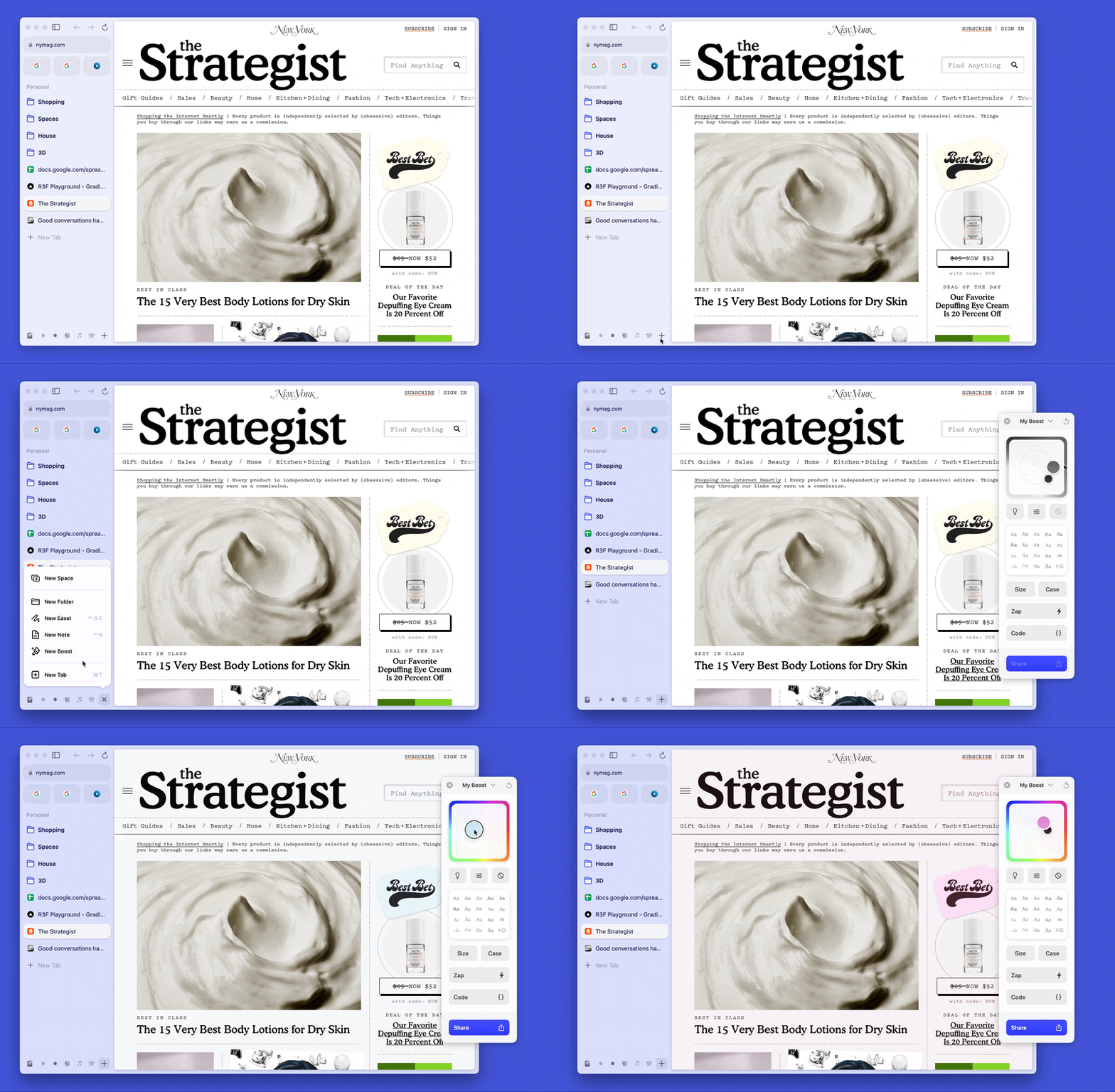
How to Create a Boost
## Zaps
The **Zap** (lighting bolt icon) remove parts of a website that you don’t want to see. Clicking a highlighted area when the zap button has been clicked will remove the area - use this to remove things you don’t use or find useful. after zapping, clicking the [\] icon near the bottom of the webpage afterward will restore the area.
## Code
The **Code** (bracket icon) button allows you to use CSS and Javascript editors; these coding languages allow for further customization of how websites look and behave. Note: Boosts containing custom code cannot be shared.
## Gallery
Check out the [Boosts Gallery](https://www.arc.net/boosts?ref=blog.warrenweb.net) with community boosts and see the internet in a new way!
[
Arc | Boost Gallery
See how other Arc members are using Boosts to remix their internets — from Twitter to YouTube, Spotify, and more.
Boost Gallery

](https://arc.net/boosts?ref=blog.warrenweb.net)
## Articles
Read this article and watch the video on how to use Boosts in the Arc browser to customize any website.
- [Boosts: Customize Any Website | Arc Resources](https://resources.arc.net/hc/en-us/articles/19212718608151-Boosts-Customize-Any-Website?ref=blog.warrenweb.net)
[WarrenWeb](https://blog.warrenweb.net/) © 2024
- [Sign up](https://blog.warrenweb.net/arc-boosts/#/portal/)